
A Corgi can look like it’s posing for a portrait and begging for a snack at the same time. Those big ears, short legs, and expressive faces make Corgis easy to recognize even on a small screen. The trick is giving the best parts of the illustration room to show. If your lock-screen clock lands right between those ears, you’ll notice it every time you pick up your phone.
Here are four looks to try, whether you want a wallpaper that celebrates the breed or one that looks like the Corgi who follows you into the kitchen.
1. A pastel Corgi portrait with room for the clock
Picture a smiling Corgi on a soft blue, peach, or lilac background, with both ears in frame and enough open space above them for the time. This works especially well as a lock screen because the face gets most of your attention, while the clock has a quiet spot of its own.
If your Corgi has a white stripe down the nose, a pink spot on one ear, or an expression you’d recognize from across the room, a simple background lets that detail stand out. Try placing the portrait a little below center so the ears stay clear of the clock and the face sits above your usual notification area.
2. A cozy Corgi curled up at home
A Corgi on a favorite blanket, tucked into a couch cushion, or stretched out in a patch of afternoon sun makes for a softer wallpaper. Warm cream and muted brown colors work well here, especially if your favorite photo is of your dog half asleep with one ear still up.
For a phone, frame the face and front paws with enough space around them to crop. If you love the whole scene, including the blanket, the couch, and that one toy your dog always drags into the frame, it can also make a good tablet or desktop background.
3. An outdoor Corgi caught mid-adventure
If your Corgi is happiest on a trail, at the beach, or supervising the backyard, use that setting as part of the illustration. An outdoor wallpaper can capture the posture you know best, from the determined trot to the look your dog gives you when it’s time to go home.
For a lock screen, a patch of sky or a softly drawn background gives the clock a readable place to sit. For a desktop, a wider scene gives you room to keep your dog on one side and leave space for folders on the other.
4. A repeating Corgi pattern for your home screen
A repeating pattern lets you fit several little Corgis onto one screen. Think a sitting pose, an ears-up profile, or a full-body trot, with small accents like paw prints or hearts between them. A steady background color and evenly spaced illustrations make it easier to pick out your apps.
If you like a little variety, try a single Corgi portrait on your lock screen and a pattern in similar colors on your home screen. You’ll see the big expressive face when you pick up your phone and get the playful pattern behind your apps.
Get the ready-made Corgi Dreams wallpaper pack
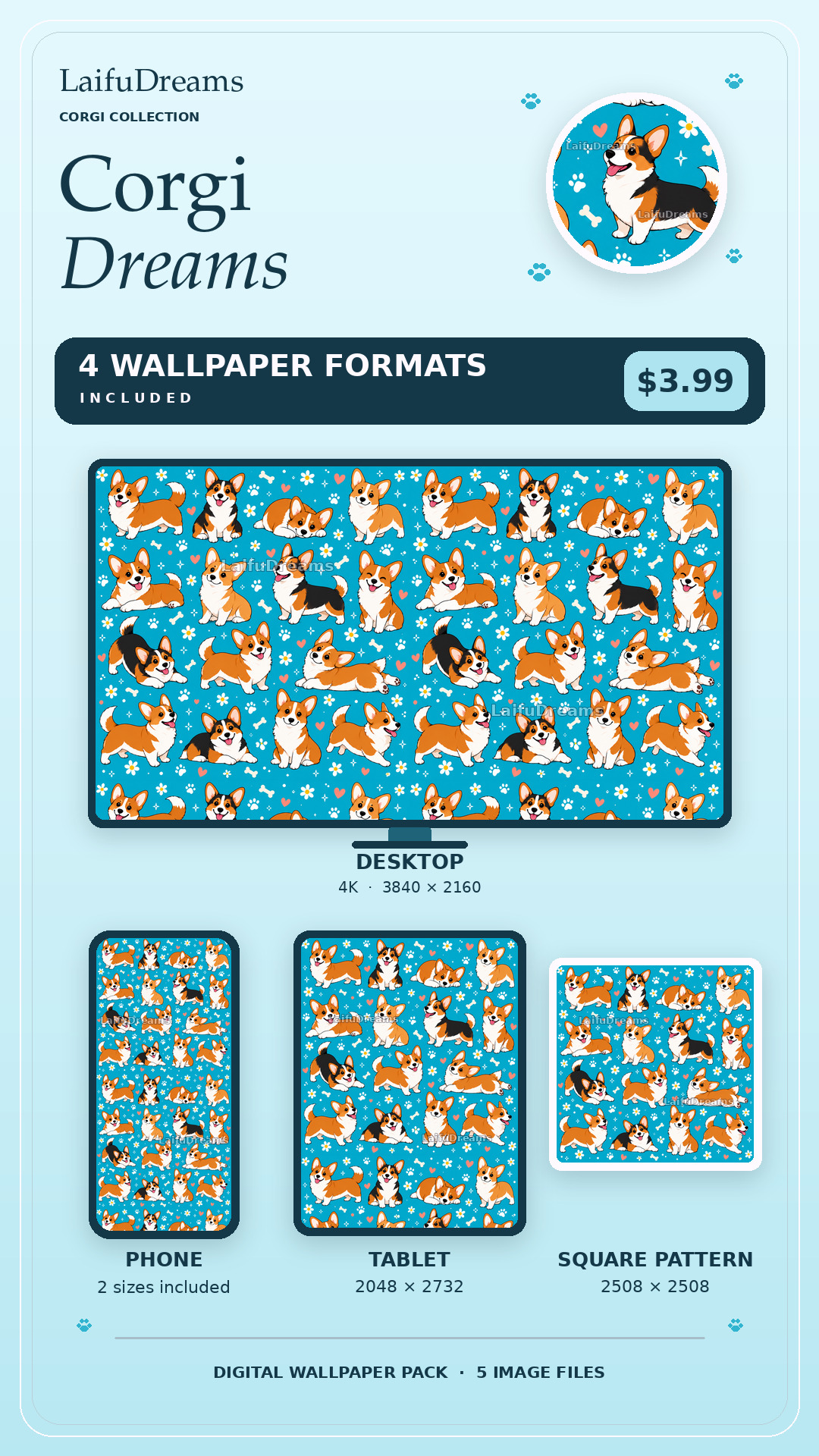
The Corgi Dreams Wallpaper Pack pairs orange-and-white and tricolor Corgis with daisies, hearts, bones, and paw prints on turquoise. You can preview the design on phone, tablet, and desktop, along with the square version. Try picturing the phone preview with your own clock and app layout before you choose how to use it.
Turn your own Corgi’s photo into a wallpaper
For a custom Corgi wallpaper, start with a photo that feels like your dog. A clear face in good light is a great starting point. If you have a second photo that shows the coat markings, a favorite collar, or the way one ear folds, have that handy too. A personal detail can make the illustration feel familiar every time you see it.
If you mostly want to use it on your phone, think about whether you’d prefer a single portrait below the clock or a repeating pattern behind your apps. See our guide to choosing pet photos for more examples, or explore Your Pet Dreams to turn a favorite photo into custom wallpaper.
Check the crop on your actual screen
Before saving your wallpaper, preview it with the clock, widgets, and app icons you normally use. Check that both ears fit, the eyes are easy to see, and the image still feels balanced when the phone crops it. If you’re using the same design on several devices, start with the file sized for each screen. The wallpaper size guide explains how the formats fit.
For setup help, use the iPhone and Android wallpaper guide. If you’d like to see what illustrated wallpaper looks like on your screen first, try the free Bernie and Jean Pierre samples.