
Keep the ears. Make room for the clock.
Choose the right shape, adjust the crop and check the real lock screen before you save your pet wallpaper.
The photo looks lovely in your camera roll, then the wallpaper preview cuts off an ear or puts the clock across the face. Usually, the image and the screen have different shapes. The solution starts with choosing a suitable file and checking its position on the actual device.
Match the shape before you zoom
An image's dimensions are its width and height in pixels. A 1290 × 2796 image is tall and narrow; a 3840 × 2160 image is wide. Both can show the same artwork, but they reveal different parts of it. Start with a phone version for a phone and a landscape version for a desktop.
There is no single phone ratio that fits every model. A 9:16 crop can still be too short for a modern tall phone. If your pack includes two phone sizes, try both in the wallpaper preview before editing either one. Read the listing for the actual dimensions supplied with that pack.
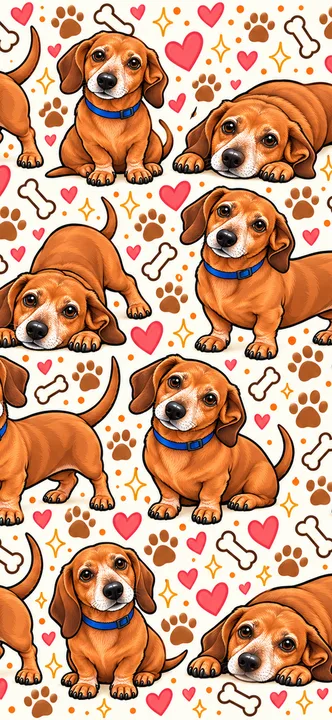
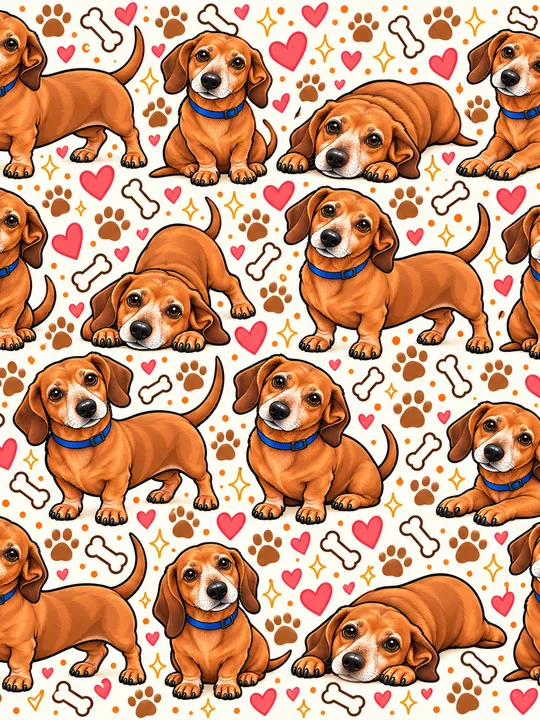
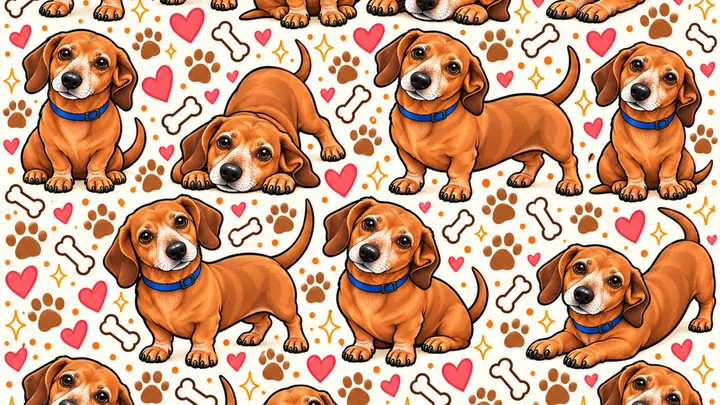
Give the clock some room
For a single portrait, start with the face below the clock and some space above the ears. The top third is a useful starting area to keep uncluttered, but it is not a guaranteed safe zone. Your clock style, widgets and notification settings affect the available space.
Check the lock screen and home screen separately. The lock screen may work beautifully while rows of app icons hide the portrait on the home screen. You can use different images on the two screens, or choose a repeated design where there are several small faces to enjoy.
Adjust a copy, then preview it
- Keep the original. Duplicate the image before making permanent edits so you can try another crop later.
- Start in wallpaper settings. Select the most suitable file, then reposition or pinch to adjust it where your device allows.
- Watch the edges. Check ears, paws and tails, then check the clock and bottom controls.
- Try an editor only if needed. Use a crop close to your screen's shape. Do not stretch the pet horizontally or vertically to fill a gap.
- Inspect the saved result. Leave the preview, lock the device and look again with your usual widgets and notifications.
If the photo is tightly framed, moving it cannot create missing background. Try a wider original or a different image. For a custom order, explain your preferred screen layout before artwork begins.
Why a sharper crop can become a softer wallpaper
Cropping removes pixels. If a pet occupies a tiny area of a distant photo, a tight crop leaves less information to fill the screen. Increasing the image dimensions afterward does not restore the original detail. Choose a closer, sharper reference or a larger supplied wallpaper instead.
Our free WebP samples have a 720-pixel long edge, so they may look soft when enlarged on a high-density phone or monitor. That is a sample-size limitation, not necessarily a download problem. The free square JPGs are 1254 × 1254 and need their own crop.
Patterns, master artwork and readability
A square master image and a seamless pattern are different deliverables. A master provides artwork you can crop; a seamless pattern is designed to repeat across its edges. Do not assume that every square file will tile without a visible join. Check what your listing actually includes.
For busy artwork, try a clock color that is easy to read, reduce optional widgets, or choose another crop. Dark mode alone does not guarantee readable text on every wallpaper. Optional iPhone depth or spatial effects also depend on the image, device and software; they are not required to use the wallpaper.
Ready to save your choice? Follow the device setup guide, or experiment first with the free Bernie and Jean Pierre samples.
See the Journal’s phone, tablet, and desktop wallpaper size guide.